
You can send the seed solutions for review to the crop experts that you’ve created for your organizations.
- Go to Seed Solution and Choose the Organization

- Choose the Seed solution you want to send for review
- Click on the three dots under Actions section and select Ask an Expert.

<image: http://syd-eu.zendesk.com/hc/article_attachments/4417477799443/mceclip0.png>
- Ask an Expert pop-up will be displayed. Click Send Solution. The Solution will be sent specifically to the crop experts in your country, depending on the crop you choose.
<image: http://syd-eu.zendesk.com/hc/article_attachments/4417487030547/mceclip2.png>
The selected seed solution for the selected organization will be sent for review to the crop experts and you can view the seed solution with status "In Review".
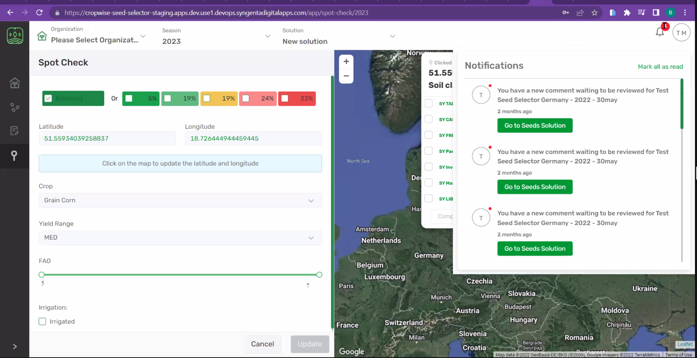
When you receive an answer from Crop Expect, you will get a notification on the top right part of the screen. Then, you will need click on Go to Seeds Solution.
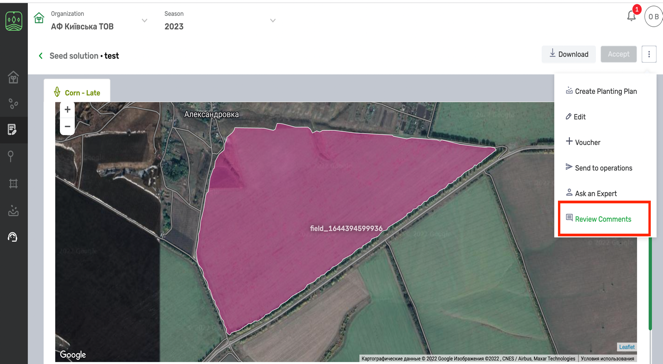
You will be navigated to the Seed Solution view mode, where you will need to click on three dots in the top right and choose Review Comments.
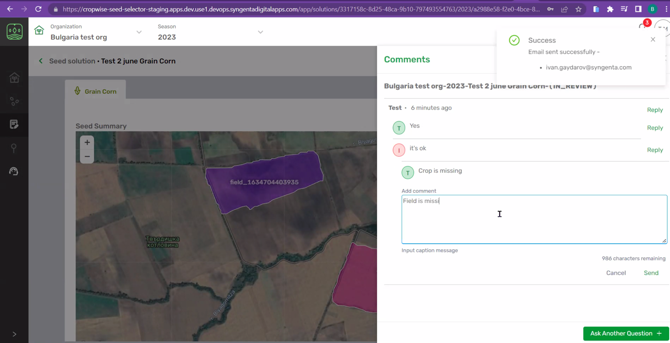
You will see the answer. If you want to answer click on Reply next the last received comment, write your text and click Send.
<image: http://syd-eu.zendesk.com/hc/article_attachments/4420648695187/MicrosoftTeams-image.png>
Comments
0 comments
Article is closed for comments.